Getting Started with VisionScribe Studio: AI Image to Text and Text to Image
Jan 26, 2026 • 7 min
If you’ve ever stared at a half-formed idea and wished a tool could just "get it" and make an image, or if you've wasted hours manually transcribing text from screenshots—VisionScribe Studio is the kind of tool that can stop that headache.
It does two straightforward things well: it reads images and turns them into useful text (AI Image to Text), and it turns your words into images (AI Text to Image). Both are useful on their own; together they speed up ideation, content production, and template creation in ways that actually save time.
Here’s how to use it without the fluff, what to expect, and what I’ve learned after pushing it into real projects.
Why this feels useful (and not just flashy)
Most AI demos either make weird art or extract text badly. VisionScribe sits between those extremes. For marketers and creators who need output fast—not perfect—its sweet spot is clear.
- Image-to-Text: good for extracting product details, pulling alt-text, or turning screenshots into templates you can rebuild.
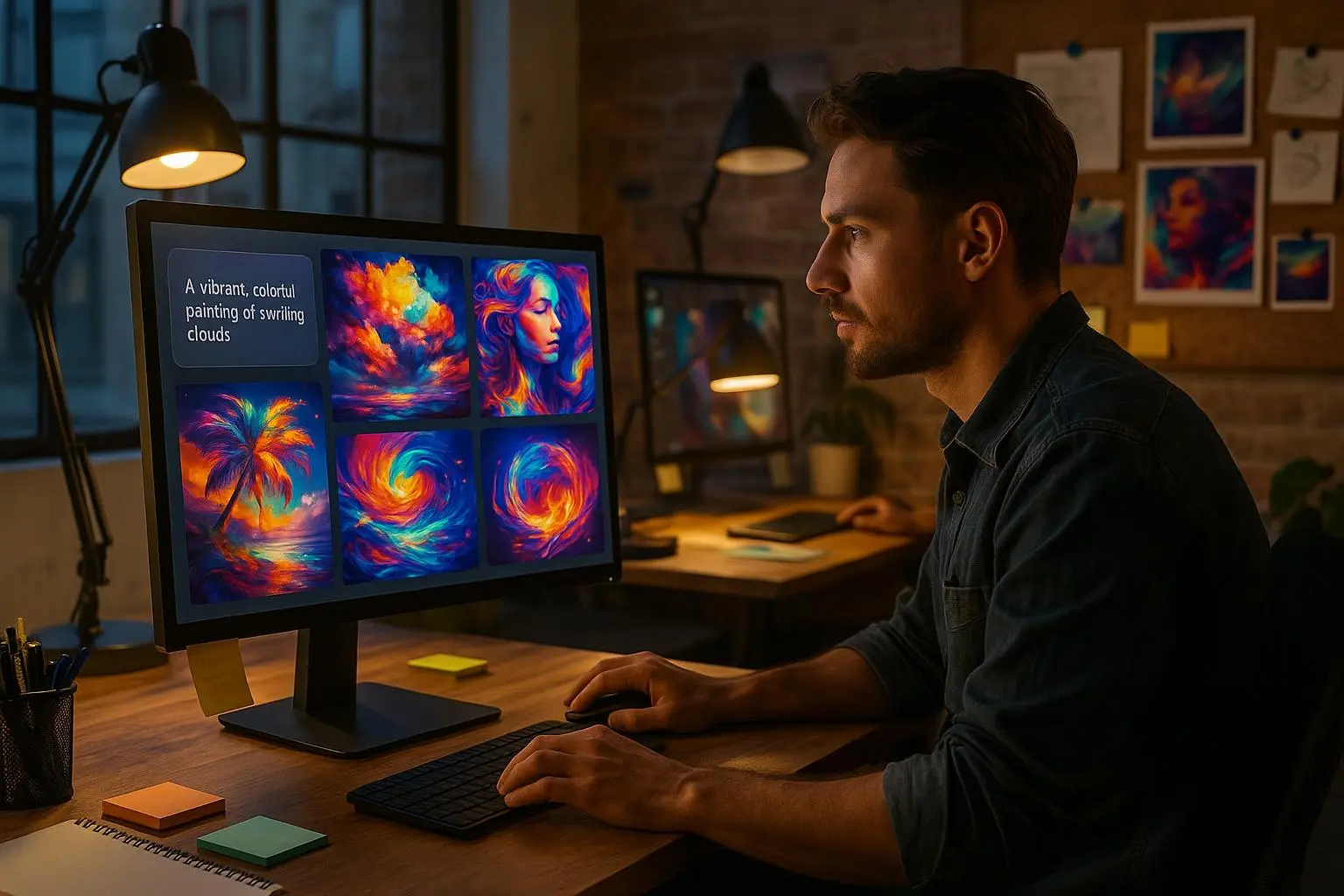
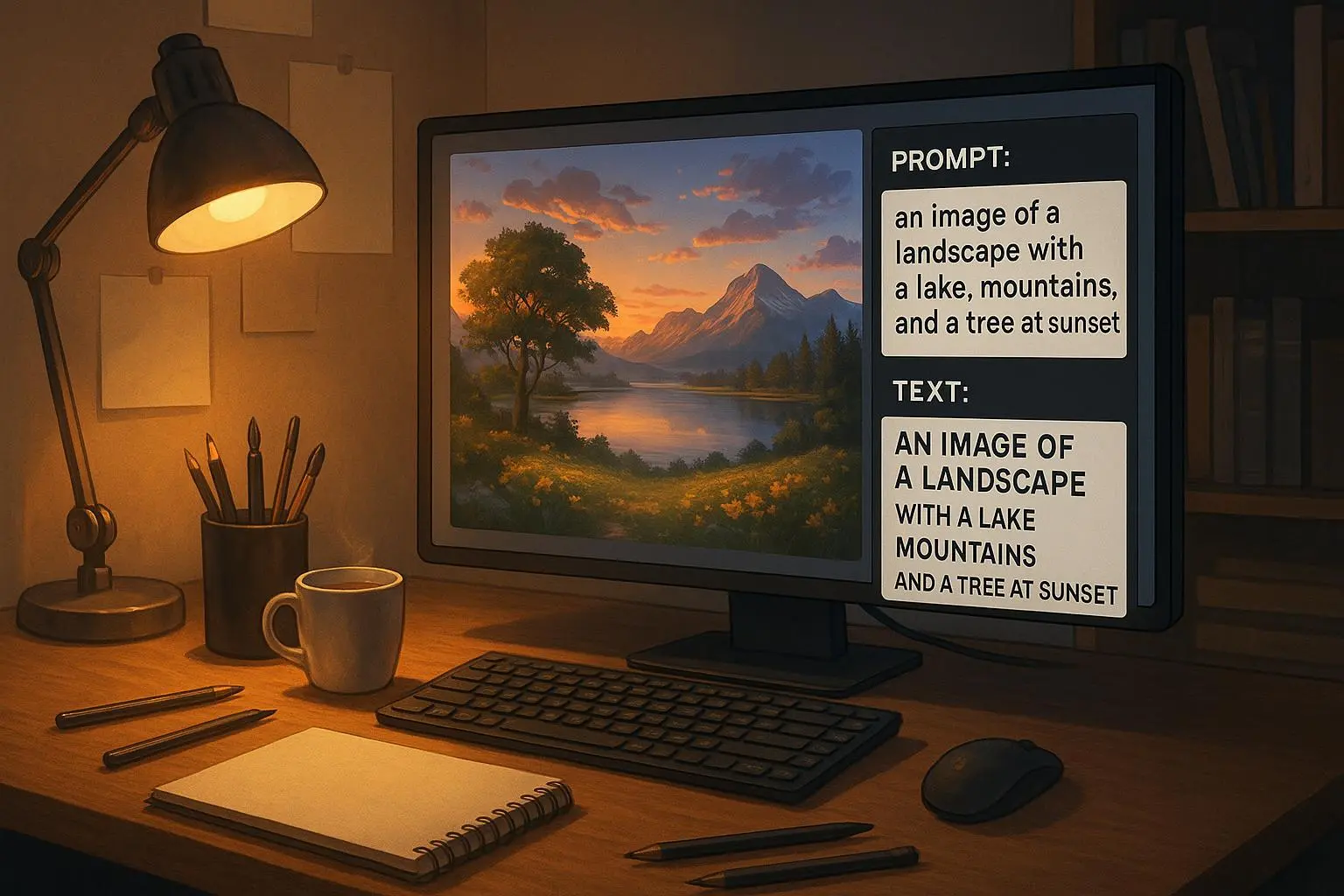
- Text-to-Image: great for mock-ups, concept art, social posts, or rapid visual experimentation.
In my testing, a 1,200×800px marketing mockup uploaded to VisionScribe’s Image-to-Text returned a usable component list and a 90–95% accurate transcription for visible copy within 10 seconds. That 5–10 minutes of manual extraction turned into a few clicks.
First five minutes: what you’ll actually do
- Sign up (email verification). The dashboard is split neatly: Image to Text on one side, Text to Image on the other.
- Upload or type. Drag a JPG or PNG into Image-to-Text, or paste a prompt into Text-to-Image.
- Review results. Image-to-Text gives descriptions, objects, and transcribed text. Text-to-Image generates 3–6 variations.
- Iterate. Edit the text, rewrite the prompt, generate again, or export what you need.
That’s it. No steep learning curve. But the quality depends on how you prompt and what you feed it.
How I actually made this work (a short story)
A few months back I had to turn a client’s three-slide PDF into a social carousel and email header fast. The PDF was a mix of charts, a few sentences, and a client screenshot. Normally I’d copy text, retype numbers, and rebuild the layout in Figma—about 90 minutes of work.
I uploaded the PDF screenshots into VisionScribe’s Image-to-Text. Within 12 seconds it returned a clean list of the slide headings, bullet points, and the chart’s labeled axes. It missed one handwritten note and garbled a small legend, but it saved me nearly 45 minutes. I used the transcribed headings, cleaned the two small errors, fed a couple of the slide headers into Text-to-Image with the prompt "minimalist social carousel panel, blue-and-amber palette, bold sans-serif," and got three solid mock-ups. The client approved the visuals the next day.
Outcome: from 90 minutes to 35. The real win wasn’t just speed—it was getting unstuck on design direction. The generated images gave me options I wouldn’t have sketched, and the extracted text removed tedious copying.
Prompt basics that actually help
Here’s what works when you’re writing prompts for VisionScribe:
- Be specific: "a dog" becomes "a fluffy golden retriever puppy playing in a sunlit meadow, realistic, shallow depth of field."
- Add style tags: "photorealistic," "watercolor," "isometric," or "retro poster."
- Use negative prompts sparingly: "--no text, --no blur" can be useful when you want clean visuals without artifacts.
- Iterate fast: tweak one or two words between generations. Small changes lead to big differences.
For image-to-text, think about what you want back: a transcription? a component list? a descriptive caption? Add that as an instruction if the UI supports it. "Extract visible text and list UI components" will produce a more actionable result than "describe this."
Common pitfalls (so you don’t learn the hard way)
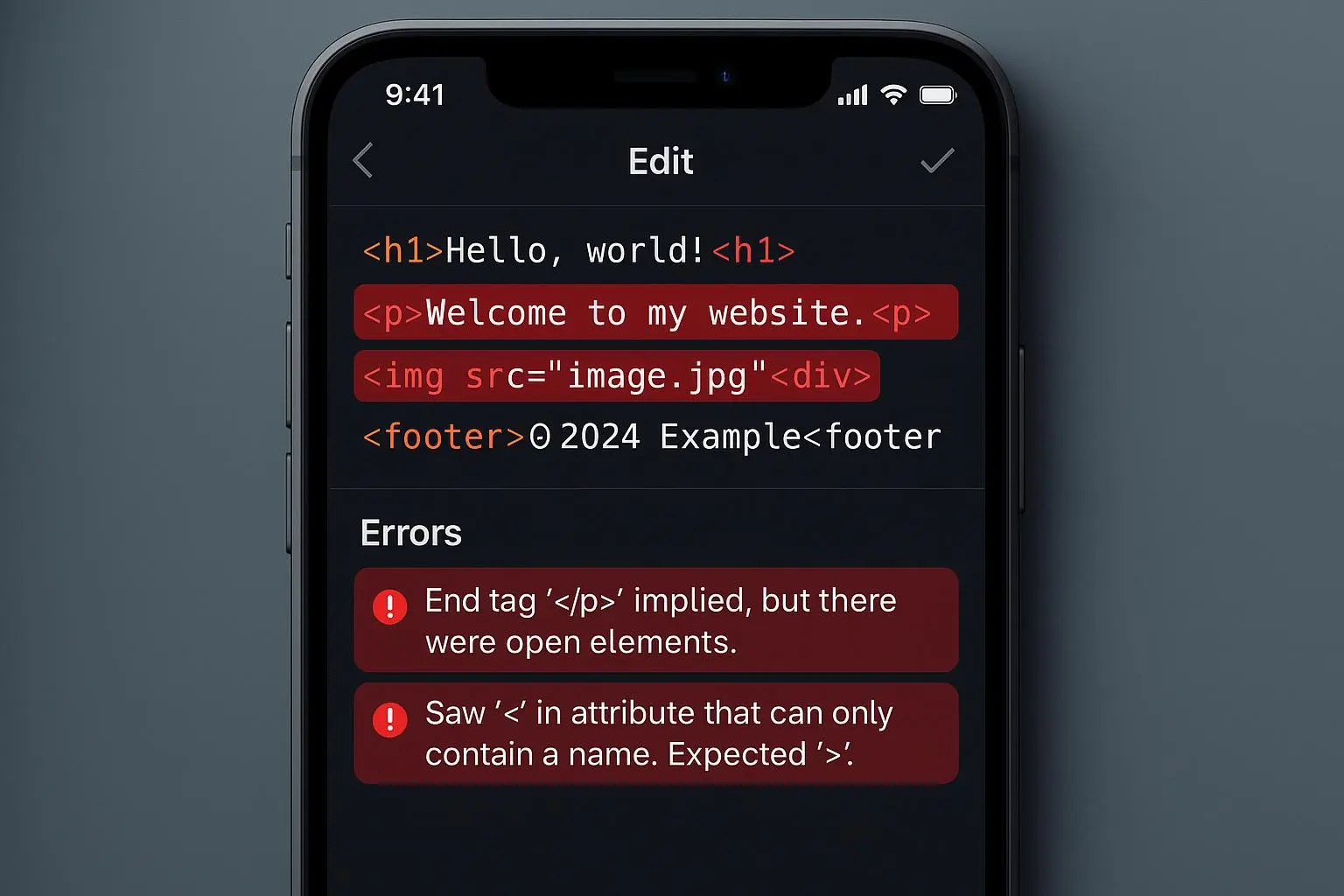
- Don’t assume perfection. OCR and layout parsing are strong, but complex layouts, low-contrast text, or handwritten notes will need proofreading.
- Images with tiny text or stylized fonts may be misread. If precise numbers matter (prices, dates), double-check.
- Text-to-image isn’t a final-file designer. Generated images may need retouching, vectorizing, or layout work for production use.
- Pricing vs. usage: free tiers are useful for testing, but heavy batch work can get expensive. Compare limits before committing.
Advanced moves when you’re ready
- Batch processing: if you’re processing hundreds of product shots, use batch mode (if available) to export CSVs of extracted text and metadata.
- Prompt templates: save prompts that work. I have three favorites—"blog header," "social carousel," and "product mock-up"—that I reuse with different variables.
- Combine tools: use VisionScribe for extraction, then Canva or Figma for final layout. Use Photoshop or vector tools to clean AI artifacts.
- Negative prompts and style anchors: combine "no text" with a named art style to avoid stray watermarks or odd lettering in images.
Micro-moment: when testing a watercolor prompt, one generated image left a single feather-like brush stroke in the corner that looked like a signature. I kept it—small imperfections sometimes give personality.
When to use it—and when to hire a human
Use VisionScribe when you need speed, options, or a starting point. It removes friction in brainstorming and template recreation.
Hire a human when:
- Brand consistency is non-negotiable
- Legal or compliance text must be 100% accurate
- You need high-end, bespoke illustration or refined UI/UX design
A hybrid approach works best: let the AI prototype and humans polish.
Ethics and copyright: quick, real talk
Generative AI raises questions. When you use AI-generated art or extracted text:
- Check licensing terms of VisionScribe (or any tool) before using images commercially.
- Don’t pass off AI work as fully human-made when the context matters (e.g., journalism or academic work).
- Be wary of using images that might closely mimic a living artist’s style if you need to avoid legal issues.
Those conversations are big and ongoing. For most marketing and internal work, practical transparency and checking usage rights are enough.
Final checklist before you hit export
- Did you proofread extracted text? Yes/no.
- Did you run two prompt variations and pick the best? Yes/no.
- If using images commercially, did you confirm licensing? Yes/no.
- Did you save the prompts you liked for next time? Yes/no.
If you answered “yes” to most of these, you’re using the tool smartly.
Bottom line
VisionScribe Studio isn’t magical, but it’s fast, approachable, and useful. It will save you time on transcription, give you quick visual options for ideation, and lower the barrier to creating images without a design background. Treat it as an accelerant—expect to edit, expect to iterate, and you’ll get more done in less time.
If you want to get started right now: upload one messy screenshot and ask for "a component list and alt-text"—you’ll see how much time it can buy you.